Getting Started
This chapter helps you install IconVectors and complete the first-run steps.
System requirements
IconVectors is available for Windows and macOS.
Windows Version
Compatible with Windows 7, 8/8.1, 10, and 11
Available in 64-bit and 32-bit
Intel i5 class CPU — 2.3 GHz+
True color GPU and display 1920×1200
8 GB RAM
Windows 7 or later
macOS Version
Will support 64-bit Intel and Apple silicon (ARM) Macs
Any 64-bit Intel-based Mac
macOS 10.13 (High Sierra) or later
Note
System requirements may change between releases. Refer to the product page or download page for the latest information.
Installing IconVectors
Download the installer for your operating system.
Run the installer.
Follow the installation wizard (including accepting the license agreement).
30-Day Trial Period
IconVectors can be used freely for a 30-day trial period starting from the day of installation.
During this time, the application is fully functional — you can create, edit, save, export, and use all features without limitations.
After the 30 days, you can still launch and explore the application, but saving, exporting, and copy/paste operations will be disabled.
To restore full functionality after the trial ends, you need to activate the product using a valid license.
Activating IconVectors
You can activate IconVectors at any time — either during the 30-day trial period or once it has expired.
When you purchase the product online, a license key is associated with your Axialis ID account. This account is created during your first purchase (or linked to your existing one). To activate the application:
Launch IconVectors.
When prompted, sign in using the email and password associated with your Axialis account.
If your account includes a valid license, the application is activated automatically.
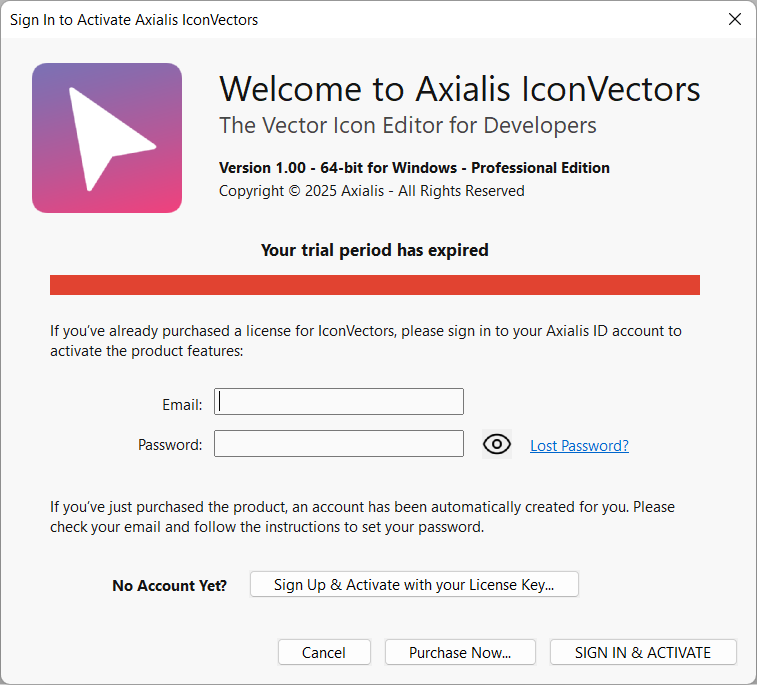

An internet connection is required to complete the activation process.
Once activated, your user name appears in the top-right corner of the control bar, indicating that the software is registered and fully functional.
Hint
If you haven’t created an account yet but have a product key, click the Sign Up & Activate with your License Key button to register your key and create your account.
The Workspace
Launching IconVectors opens the main workspace, which includes all the tools you need to create and manage icons. The application starts with a new blank icon (if configured), or you can open an existing file.
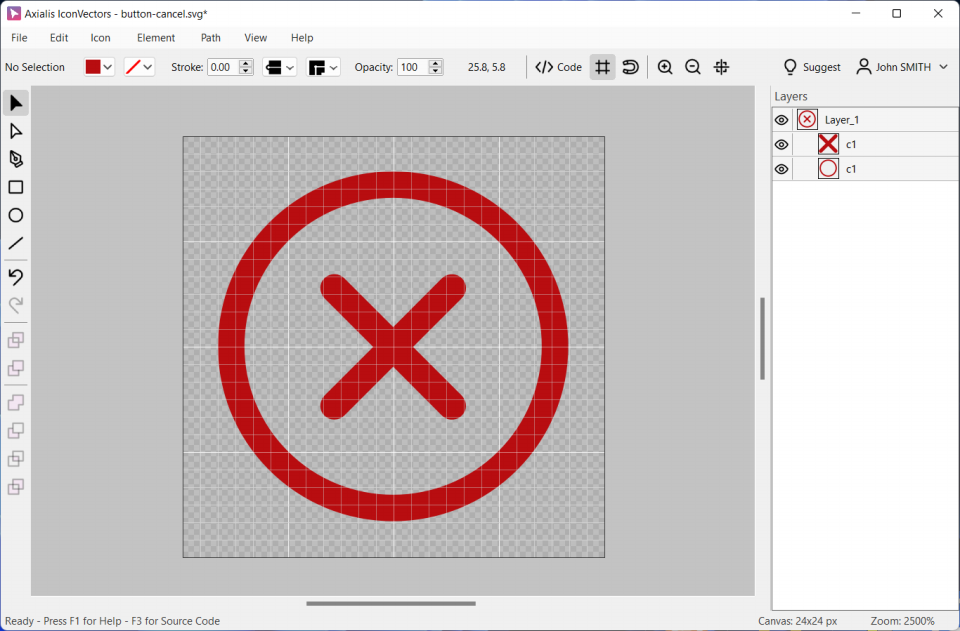
The IconVectors workspace is divided into several functional areas:
Menu bar (top) — Provides access to all commands such as File, Edit, Icon, Element, Path, View, and Help.
Toolbox (left) — Contains drawing and editing tools, such as the selection tool, shape tools, pen, and path editor. Only one tool can be active at a time.
Undo/Redo (left) — In the left toolbar you can undo or redo commands. There is no limit in undo/redo operations.
Canvas (center) — This is where your icon is drawn and edited. It includes a checkerboard background to indicate transparency, along with visible grids and guides.
Control bar (top center) — Displays adjustable properties for the selected element: position, size, color, stroke, opacity, etc.
Preview panel (right) — Displays a live preview of the final icon on light or dark background. It updates as you draw and offers quick Pixel/Vector rendering, scale, background, and export options (see The Preview Panel).
Layers panel (right) — Lists all the layers and elements in your icon. You can show/hide, group, or rename them for better organization.
Status bar (bottom) — Displays the canvas size, an editable zoom level, and helpful hints or shortcuts.
Hint
If you prefer a dark interface, you can change the theme by going to , then choosing a color theme under the General tab.
The Canvas and the Icon
The canvas is the space in which your icon is drawn. You can zoom in/out, type an exact zoom percentage in the status bar, drag a zoom area, show or hide the grid, and snap elements for alignment.
Your icon itself consists of one or more vector elements, such as shapes, paths, or compound elements. These elements are displayed on the canvas but organized in
Layers and Element Stacking
Layers help you organize icons into meaningful parts. You can show/hide them individually, rename them, and reorder them for visual hierarchy.
The Layers panel (right side of the workspace) shows all elements in your document, with icons indicating visibility and object type. Selected layers are highlighted and can be edited directly on the canvas. One or more elements can be selected, moved, duplicated, grouped/ungrouped.
Supported File Formats
Axialis IconVectors uses SVG (Scalable Vector Graphics) as its native format, a widely adopted standard for vector-based drawings. The application is optimized for editing small vector assets such as icons, but it is capable of opening and displaying SVG documents of any size or complexity.
When you create or save a document in IconVectors, it is stored in SVG format. However, you can export/generate your icons in other formats such as XAML, WPF Geometry, VectorDrawable, SwiftUI, VueTS, ReactTS, C++, or bitmap images (PNG, ICO, BMP, etc.). The same code-generation and export pipeline is also available through MCP automation in version 1.70.
This approach keeps the editing workflow simple and standards-based, while still offering great flexibility for deployment across different platforms and environments.
Working with Documents
Creating a New Icon Document
To create a new SVG icon, select or press Ctrl+N.
In the dialog, you can define the icon’s width and height in pixels. Enable Keep Aspect Ratio to maintain proportions. You can also choose to set this size as the default for new documents.
Opening an Icon Document
To open an existing SVG icon, use the menu command. Once opened, the icon is fully editable.
– Ctrl+O
– Shift+Ctrl+O
Hint
You can open several SVG icon documents simmultaneously. Each document will open in a new instance of the application.
Closing an Icon Document
To close the current document, select:
– Ctrl+W
This clears the workspace. If the document has unsaved changes, you’ll be prompted to save them before closing. To close the edition window, click the close button at the upper-right corner. This will close the instance associated with this document.
AI-assisted workflows with MCP
IconVectors 1.70 includes a local Model Context Protocol (MCP) integration for developer automation, with public tool naming that now works correctly with Claude clients. In practice, the editor and the MCP server work together:
IconVectors(orIconVectors.exeon Windows) hosts the document, user interface, undo history, and local bridge.IconVectorsMcp(orIconVectorsMcp.exeon Windows) is launched by a local MCP-capable client such as Codex or Claude Desktop.The AI client can then create, inspect, edit, render, and export the current drawing through IconVectors itself.
On Linux, a packaged install typically places the binaries in /usr/bin and the optional helper files in
~/.local/share/Axialis/IconVectors/MCP.
On Windows, the typical layout remains:
binaries in
C:\Program Files\Axialis\IconVectorshelper files in
%APPDATA%\Axialis\IconVectors\MCP
The most useful helper files are the host-specific setup guides, the human-readable
iconvectors-mcp-command-reference.md file, and the optional host instruction templates such as
codex-AGENTS.md.template or claude-CLAUDE.md.template. Codex users can also install the optional
iconvectors-codex-skill\SKILL.md skill pack for stronger IconVectors-specific behavior. You can open the helper
folder directly from .
For the architecture and command inventory, see MCP Integration. For client-specific setup, see Using IconVectors with Codex / OpenAI and Using IconVectors with Claude / Anthropic.
Undo and Redo
Axialis VectorIcons features a full, unlimited Undo/Redo system that allows you to safely experiment and correct mistakes during your editing workflow.
Every action that modifies the document — including drawing, transforming, editing paths, changing properties, and deleting elements — is recorded and can be undone or redone at any time.
Undo and Redo Commands
Undo: Reverts the most recent action.
Redo: Reapplies an action that was previously undone.
These commands are available:
From the Edit menu
Using the toolbar buttons
Via standard keyboard shortcuts: -
Ctrl+Zfor Undo -Ctrl+Yfor Redo
Scope of Undo/Redo
All modifications that affect the document are included in the undo history, such as:
Creating or deleting elements
Moving, scaling, or rotating objects
Editing shapes and paths
Changing fills, strokes, gradients, and effects
Grouping or ungrouping items
Converting shapes to paths
Pasting or importing objects
Note
Undo/Redo operates on the entire document, not just the currently selected elements.
There is no fixed limit to the number of undoable actions — you can freely step back through your editing history as far as needed.
User Preferences
You can access the Preferences window by pressing F2 or choosing .
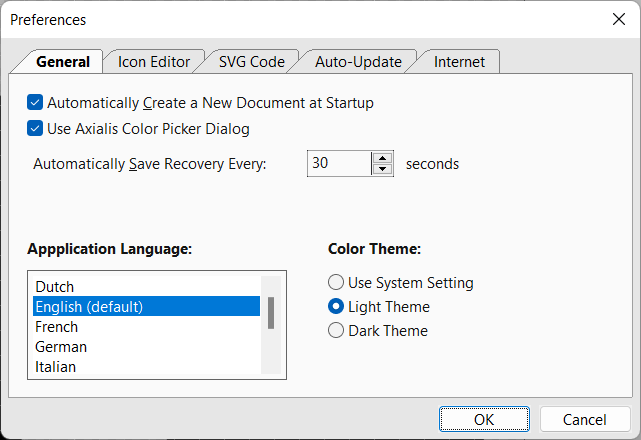
Here you can configure:
Startup behavior
Language
Interface theme (Light, Dark, or System default)
Auto-recovery interval
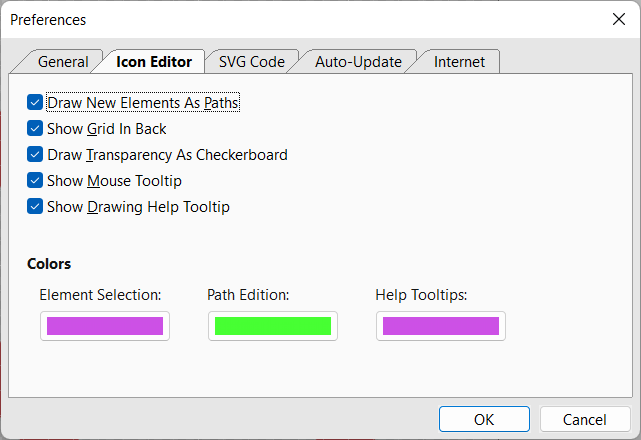
Additional preferences are available in tabs for:
Icon Editor behavior (grids, transparency, tooltips)
SVG code formatting and minification
Update settings
Proxy configuration
Quick Start Sample Icons
When you install IconVectors, a collection of sample icons is added your Documents\Axialis IconVectors folder. We recommend that you open them to learn how icons are built using geometric elements, paths and organized in layers. You can also use them as templates for your own projects
Here is the list of Axialis Vector Icons provided freely as sample:
Axialis Universal Pro Emoji - Icons from the Axialis Universal Pro icon sets (26 sets, 6245 icons, 279 Overlay badges)
Axialis Flat Design - Icons from the Axialis Flat Design icon sets (16 Sets, 2640 Icons, 100 Overlay badges)
Axialis Fluent Pro - Icons from the Axialis Fluent Pro icon sets (25 sets, 4123 icons, 146 Overlay badges)
Axialis Fluent System - Icons from the Axialis Fluent System icon sets (27 sets, 4454 icons, 230 Overlay badges)
Axialis Fluent System Overlays - Overlay badges from the Axialis Fluent System icon sets (27 sets, 4454 icons, 230 Overlay badges)
Axialis Line Pro - Icons from the Axialis Line Pro 2026 icon sets (5 sets, 1230 icons, 100 Overlay badges - still in production…)
Axialis Office Pro - Icons from the Axialis Office Pro icon sets (27 sets, 6365 icons, 234 Overlay badges)
Hint
If you installed the Axialis Shell Extension during setup, you’ll see live SVG thumbnails for these icons directly in File Explorer.