

Installable PWAs need PNG icons at the right sizes plus a maskable variant, or the install prompt is missing and Android crops your icon into an awkward circle. This guide turns one SVG into a complete pack in IconVectors: 192×192 and 512×512 PNGs and a maskable version, wired into manifest.json and verified in Maskable.app.
You design once on a square grid, export every size in a single pass instead of resizing by hand, and ship icons that pass the Lighthouse maskable-icon audit. Maskable icons and the manifest purpose field are documented by MDN and web.dev.
What sizes do you actually need?
- Baseline (required):
192×192and512×512PNGs. These are the two sizes MDN's manifest examples use and the minimum Chrome checks for an installable PWA. - Optional extras:
256×256and384×384cover older guidance and a few edge contexts, but 192 plus 512 plus a maskable variant already satisfies the install criteria. - Favicons are separate: a browser-tab favicon (an SVG plus one or two small PNGs) is a different asset from PWA install icons; don't conflate the two in the manifest.
Create a maskable icon (safe area & padding)
A maskable icon lets each OS crop your artwork to its own shape — circle, squircle, rounded square — while still filling the whole tile. The rule: keep every critical element inside the safe zone, a centered circle whose diameter is 80% of the icon size, and let an opaque background fill the rest of the square so nothing shows through when the OS clips the corners.
Step-by-step in IconVectors
- Open, draw, or import your SVG.
- Open an existing file: File → Open... (Ctrl+O).
- Create a new icon: New Icon (Ctrl+N) and design on a square grid (32×32 works well; the canvas is square, so the artboard maps cleanly to a square PNG).
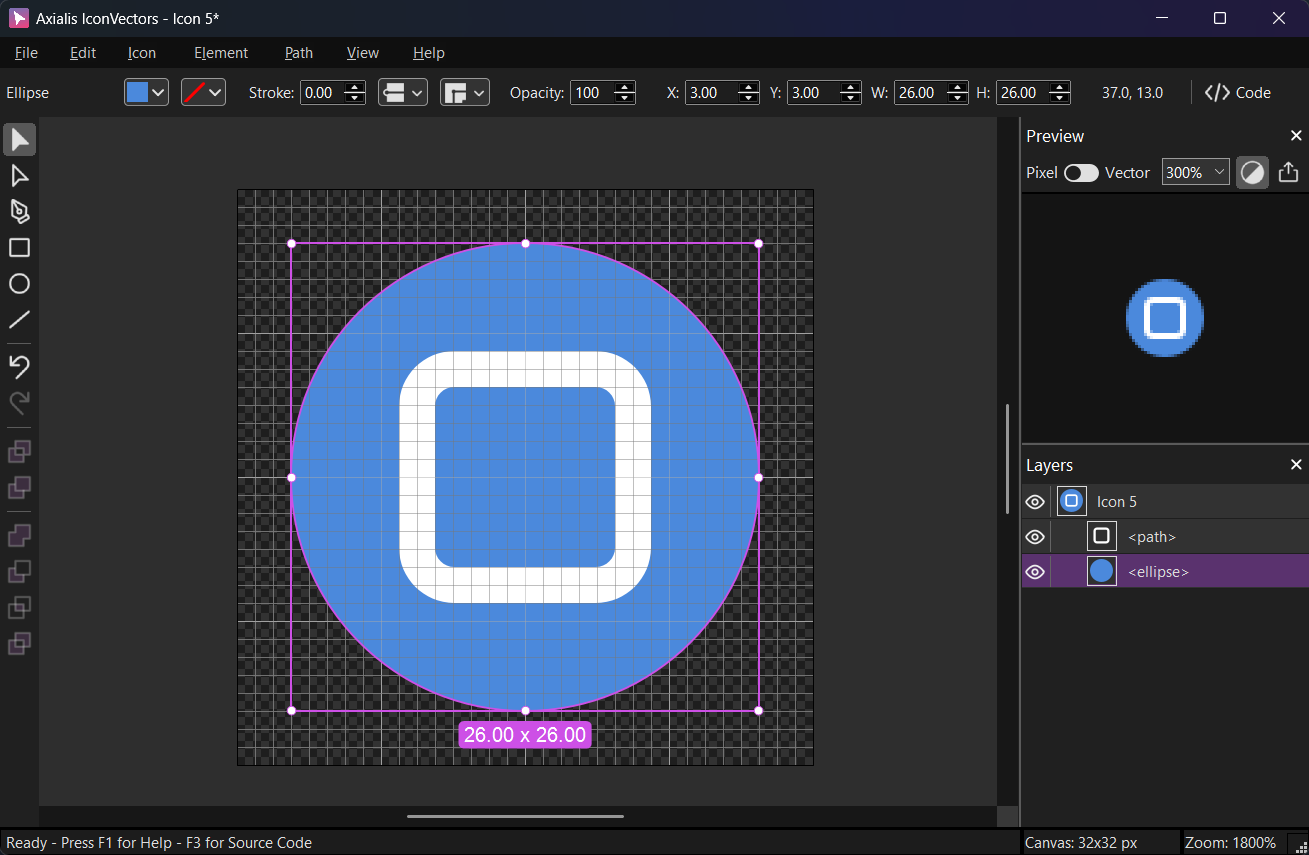
Keep a simple silhouette and a centered glyph, and leave margin around the edges so the maskable crop can't clip critical detail. - Export every size in one pass:
Open File → Export → Export to Multiple Bitmaps (Shift+F3), pick a destination folder, and set a base filename such as
pwa-icon— IconVectors appends the size suffix and extension automatically.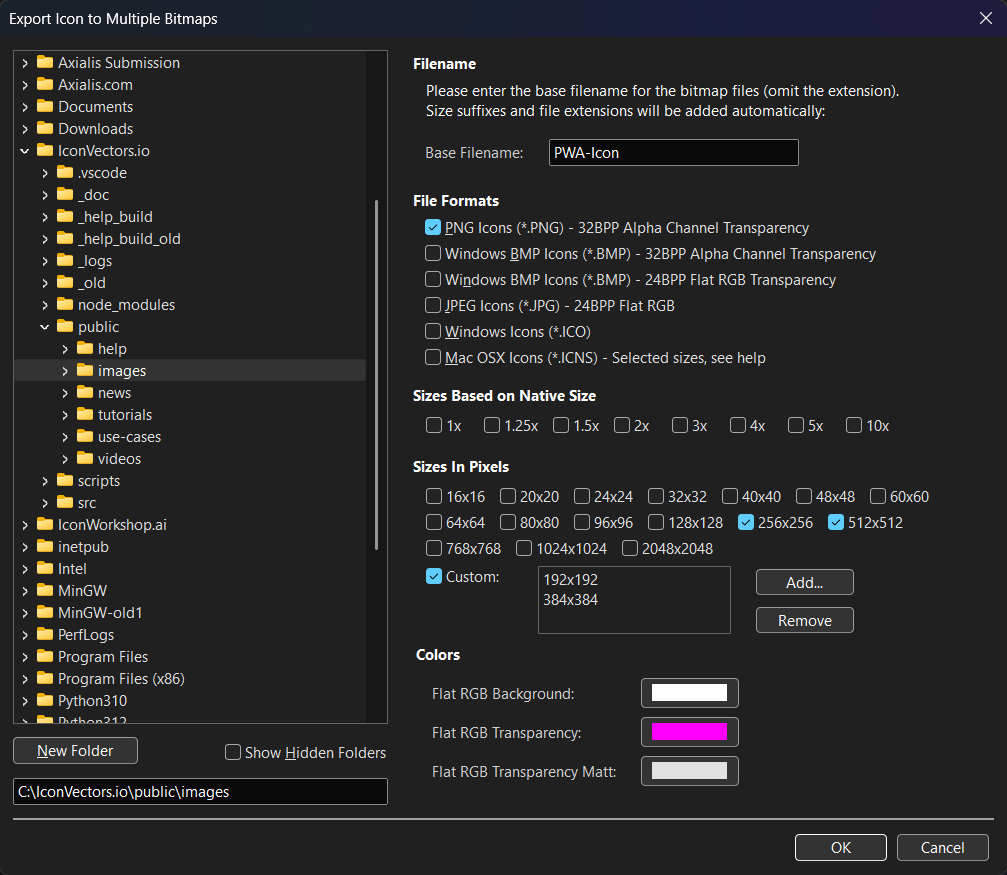
- File Formats — check PNG Icons (*.PNG) – 32BPP Alpha Channel Transparency.
- Sizes in Pixels — tick 256 and 512, then use Custom to add 192 and 384. The required manifest sizes are 192 and 512; the other two are optional extras.
- Colors — PNG output is 32-bit with an alpha channel, so transparent icons need no flat background here.
- Make a maskable variant:
- Shrink the glyph so it sits inside the 80% safe zone, add an opaque background that fills the square, then export a second pair through the same dialog — name them
pwa-icon-192-maskable.pngandpwa-icon-512-maskable.png. - Drop those PNGs into Maskable.app and check the circle, squircle, and rounded-square previews; if any edge clips, increase the padding and re-export.
- Shrink the glyph so it sits inside the 80% safe zone, add an opaque background that fills the square, then export a second pair through the same dialog — name them
- Update
manifest.json:{ "name": "My PWA", "start_url": "/", "display": "standalone", "icons": [ { "src": "/icons/pwa-icon-192.png", "sizes": "192x192", "type": "image/png", "purpose": "any" }, { "src": "/icons/pwa-icon-512.png", "sizes": "512x512", "type": "image/png", "purpose": "any" }, { "src": "/icons/pwa-icon-192-maskable.png", "sizes": "192x192", "type": "image/png", "purpose": "maskable" }, { "src": "/icons/pwa-icon-512-maskable.png", "sizes": "512x512", "type": "image/png", "purpose": "maskable" } ] }To declare one entry per size instead of two, set
"purpose": "any maskable"— the same PNG is then used for both the standard and maskable slots, which only works if that icon already respects the 80% safe zone. - Test & iterate:
- Reopen Maskable.app to confirm the final crop across every shape, then install the PWA on a real Android device to see the icon in the launcher.
- Run Lighthouse and check the Installable and Maskable icon audits; both should pass once the manifest lists a 512 icon and a maskable variant.
Notes & troubleshooting
- Icon looks off-center after masking? The glyph is outside the safe zone. Add internal padding so it fits inside the centered 80%-diameter circle, then re-export.
- Install prompt never appears? Chrome requires a manifest with a 512×512 icon, a
start_url, adisplayofstandaloneorfullscreen, and a service worker. Check the Application panel in DevTools for the exact missing field. - PNGs too heavy? Keep the SVG master minified and re-export PNGs only when the artwork changes; a lossless PNG optimizer in your build step trims the rest.
That is the whole pack: one SVG master, a single export pass for the 192 and 512 PNGs, a maskable variant inside the 80% safe zone, and four manifest.json entries. Keep the SVG as your source of truth and re-run the export whenever the icon changes — nothing in the chain needs hand-resizing again.
Related guides
Start Making SVG Icons Today with IconVectors
Download the fully-functional 30‑Day Free Trial and unlock your icon design workflow.
Version 1.70 for Windows and macOS